A single iPhone photo can be several megabytes, and a camera photo even more. That's fine in your library, but too big for email, upload forms and websites. Your Mac has three ways to make images smaller built in, plus the option of a dedicated app. Here's each one, and when it makes sense.
Two things shrink an image: fewer pixels (resizing) and stronger compression (a lower quality setting or a more efficient format). The biggest savings come from combining them.
1. Finder: Quick Actions → Convert Image
The quickest built-in option for a few files. It converts and resizes without opening any app.
- Select one or more images in Finder.
- Control-click and choose Quick Actions → Convert Image.
- Pick a format (JPEG, PNG or HEIF) and an image size (Small, Medium, Large or Actual Size).
- Click Convert. The new files appear next to the originals.
Good for: shrinking a handful of photos for an email. Limits: no quality control, a few fixed sizes, and no WebP or AVIF.
2. Preview: Export with a lower quality
Preview gives you more control over a single image, or a few opened together.
- Open the image in Preview.
- Optional: choose Tools → Adjust Size and enter a smaller width, with “Scale proportionally” and “Resample image” ticked.
- Choose File → Export, set Format to JPEG and drag the Quality slider towards Least.
- Save. The file size estimate updates as you move the slider.
Good for: one image where you want to see the effect of the quality slider. Limits: the export formats are HEIC, JPEG, JPEG-2000, OpenEXR, PDF, PNG and TIFF, so no WebP or AVIF. PNGs aren't optimised, and metadata isn't removed.
3. Photos: Export at a smaller size
If the images live in your Photos library, export them from there: select the photos, choose File → Export → Export Photos, then pick JPEG, a quality and a size. You can also choose whether to include location information. This is handy for sharing a selection of photos, but it only works on photos in your library.
4. A dedicated compressor: Squeezels
When it's a whole folder, or you're preparing images for the web, a dedicated app does the job better and faster. Squeezels uses specialised encoders (mozjpeg for JPEG, oxipng for lossless PNG, libwebp and libavif for WebP and AVIF), so files come out smaller at the same quality.
- Drag images or a whole folder onto the Squeezels window, its Dock icon or its menu bar icon.
- Leave the defaults (quality 80%, metadata stripped) or pick a maximum size, such as 2560 px, in Settings.
- Squeezels works on one image per CPU core and shows each file's before and after size.
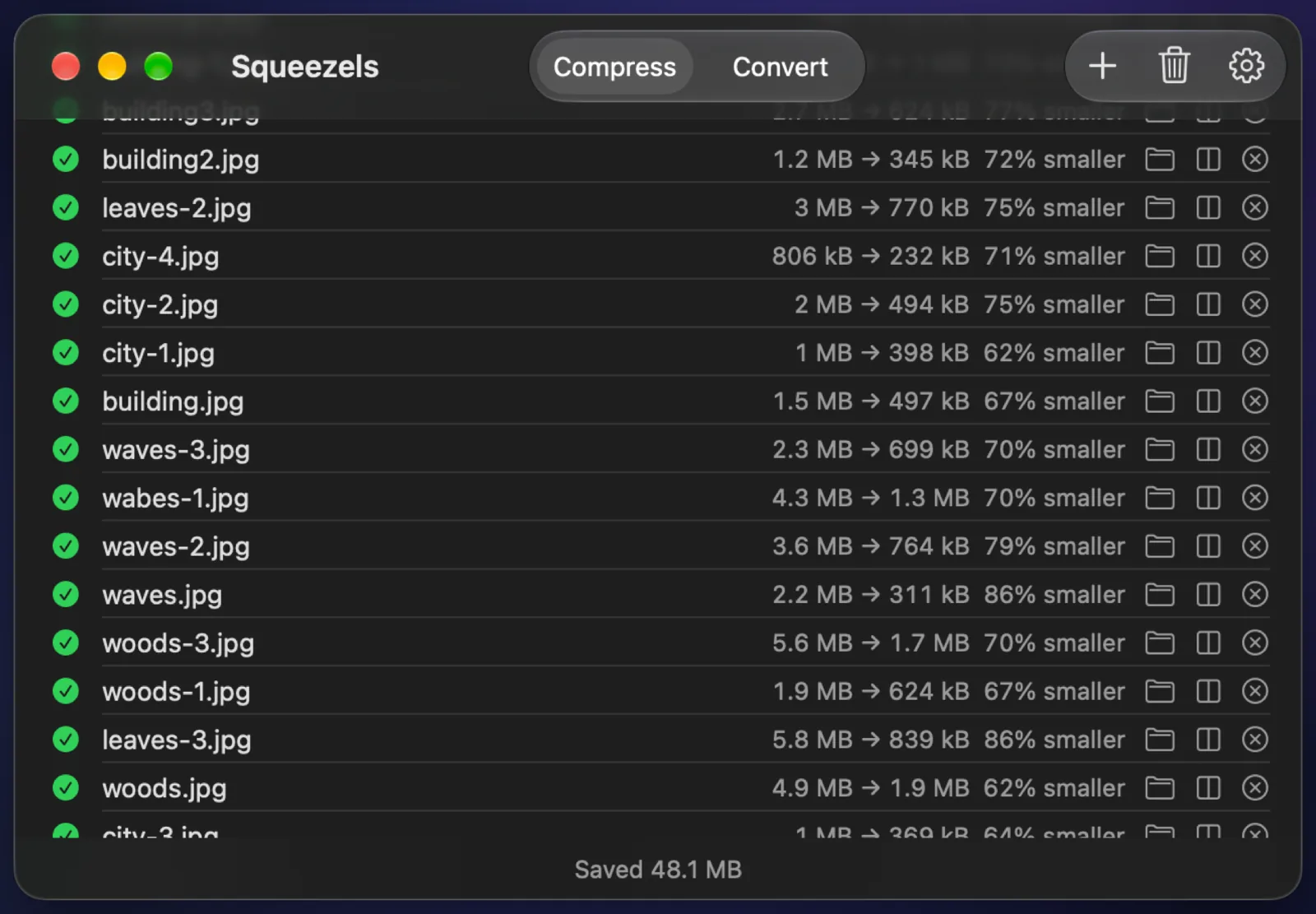
Good for: folders of photos, web images, and anything you do regularly. The free version compresses 30 images a day; Squeezels Pro removes the limit and converts between formats.
Which should you use?
| You want to… | Use |
|---|---|
| Shrink a few photos for an email | Finder Quick Action |
| Fine-tune one image's quality | Preview |
| Share an album from your library | Photos export |
| Compress or convert whole folders | Squeezels |
| Make WebP or AVIF for a website | Squeezels Pro |
| Remove GPS location from every file | Squeezels (on by default) |
How small should an image be?
For the web, a photo rarely needs to be wider than 2,560 pixels, even for high-resolution screens, and 1,920 or 1,280 is enough for most content images. For email, 1,920 pixels at quality 80% is a good default. Keep your full-size originals: compression is a one-way trip, and you'll want the originals for printing or editing.